
The Flux Analytics bookmark lets you instantly view traffic insights for any page on your website. Once it’s added to your browser’s bookmarks bar, simply click it while viewing a page on your site to launch Flux Analytics for that page.
Install the Bookmark
- Log in to your Broadstreet account.
- Navigate to Flux Analytics.
- Locate the Flux this page button.
- Drag the Flux Bookmark button to your browser’s Bookmarks Bar.
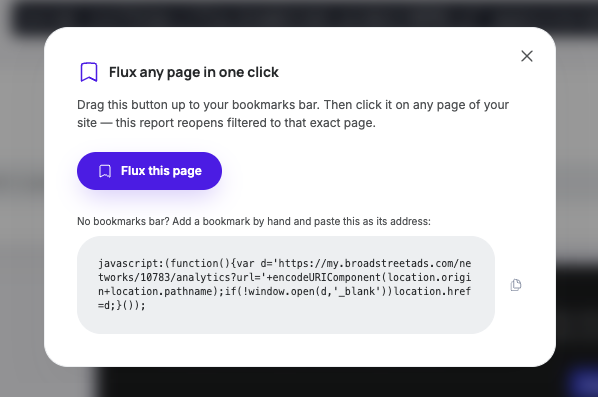
Tip: If your bookmarks bar isn’t visible, press Ctrl + Shift + B (Windows) or Command + Shift + B (Mac) to show it in most browsers.
How to Use It
- Visit any page on your website.
- Click the Flux Analytics bookmark from your bookmarks bar.
- Flux will automatically open analytics for the page you’re currently viewing.
There’s no need to copy and paste URLs or search for pages manually the bookmark does the work for you.
Troubleshooting
I don’t see my bookmarks bar.
- Enable your browser’s bookmarks bar using the keyboard shortcut above or through your browser’s View menu.
The bookmark isn’t working.
- Make sure you’re logged in to your Broadstreet account.
- Verify you’re viewing a page on your own website.
- If needed, remove the bookmark and drag it from Flux Analytics again.